How to use ChatGPT to make stickers for iMessage and WhatsApp
Who doesn't love a good sticker? Like emoji, stickers can be a great way to communicate warmth and nuance in a text message, ensuring any emotion you want to convey isn't lost in between words. Apple…
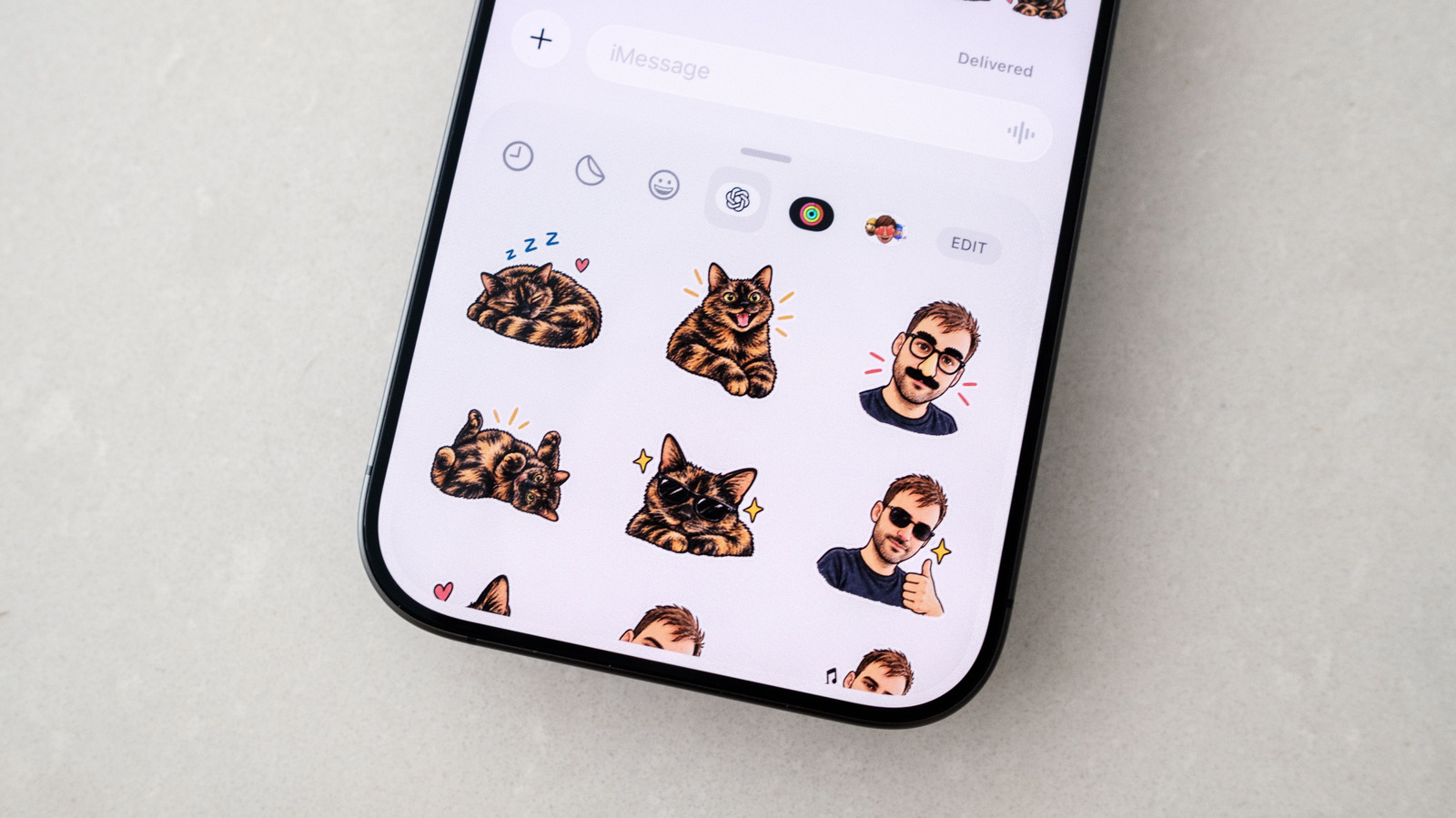
Who doesn't love a good sticker? Like emoji, stickers can be a great way to communicate warmth and nuance in a text message, ensuring any emotion you want to convey isn't lost in between words. Apple has long allowed iOS users to turn their photos into stickers that you can send over iMessage, and while you can add effects to stickers made this way, they're limited in scope. If you want something a bit more fun, OpenAI recently added a sticker-specific workflow to ChatGPT Images that makes it easy to turn almost any photo into stickers you can send to your friends and family.
The easiest way to generate stickers using ChatGPT is through the mobile app ( iOS and Android ). Once you have the app open, follow these steps:
After a few moments, ChatGPT will generate a set of nine stickers that you can add to iMessage and WhatsApp. If you're happy with its output, tap Add to chat apps , followed by either iMessage or WhatsApp to import them to your preferred messaging platform. If you select WhatsApp, you'll be first asked to name the sticker pack before it's added to the app. Apple's iMessage won't be an option if you're using an Android phone.
If you're not happy the stickers ChatGPT has generated, you can tell it to tweak them by following these steps:
Outside of the method described above, you can write your own prompt instructing ChatGPT to generate a sticker. It can be useful to do things this way if you want the chatbot to stay more faithful to your original source photo.
Like before, if you're happy with the result, tap Add to chat app , followed by either iMessage or WhatsApp to export the sticker. Similarly, tap the image and then Edit to ask ChatGPT to modify its output. If at any time you feel ChatGPT completely misunderstood your request, you can tell it to try again from scratch by tapping the three dots icon and then Retry .
Once you have a few different stickers you're happy with, sending them involves going to your favorite messaging app and using the same flow you would use to send regular stickers. In case you need a refresher, here's how to do that.
One last note: any stickers you generate through ChatGPT will count against your daily and weekly usage limits. Keep that in mind if you're on a free account , as you may have to wait for your limit to refresh before ChatGPT can complete a request.
Read Full Story at Engadget →