How to use your Windows PC to make and receive phone calls
When you need to make an old-fashioned call, Windows can help you avoid reaching for your phone. It's easy to go days or even weeks without using your phone to make an actual call. But when you need…
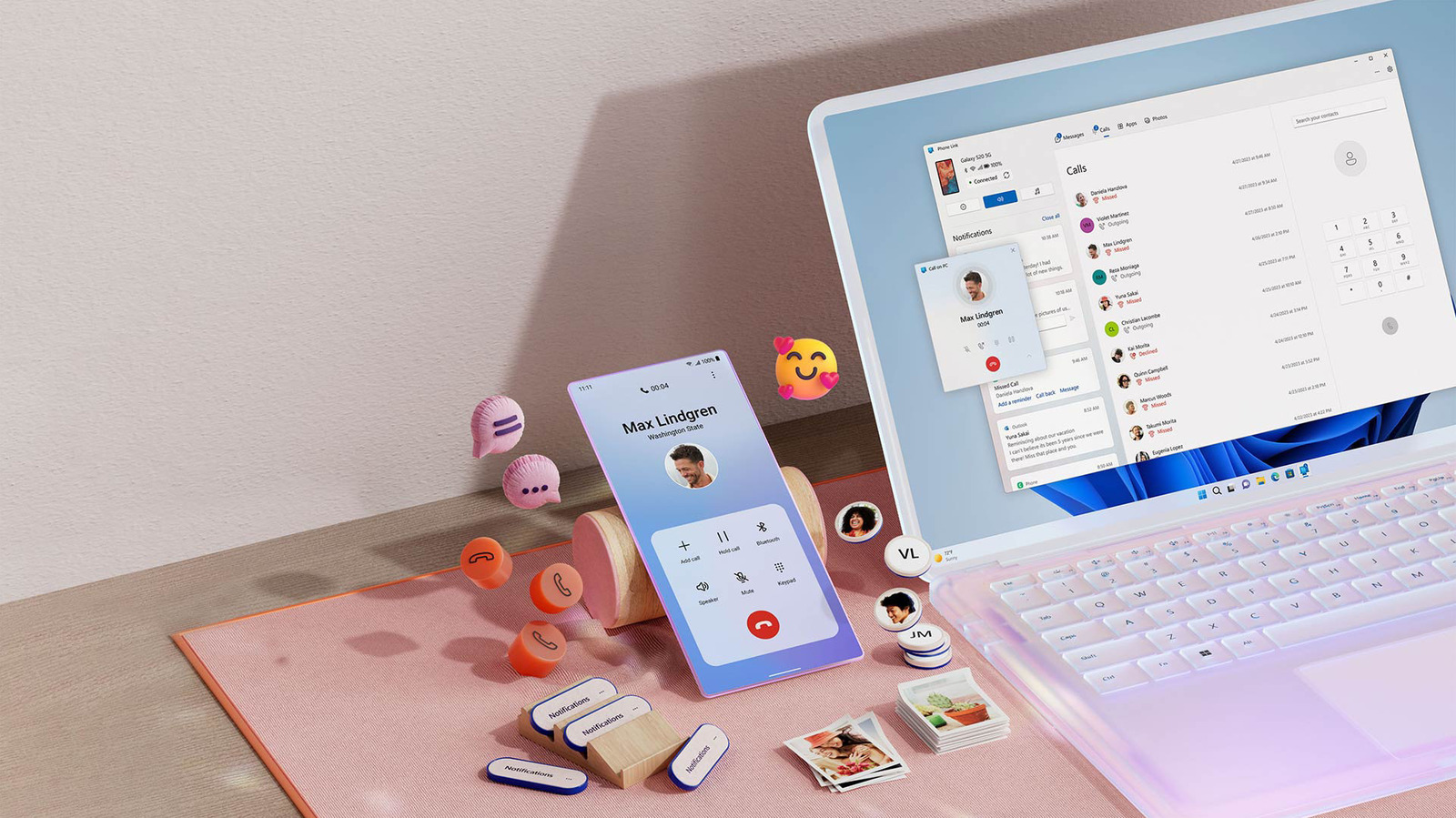
When you need to make an old-fashioned call, Windows can help you avoid reaching for your phone.
It's easy to go days or even weeks without using your phone to make an actual call. But when you need to call an organization or person who doesn't use alternative chat platforms, you might prefer to talk on your computer instead of picking up your phone. This makes for easier multitasking, especially if you wear headphones at your desk all the time.
On Windows 11, the Phone Link app is the solution for this. On top of running phone calls through your computer, it can also streamline your setup by enabling texting and notification sync. You have to leap through a few hurdles, and iPhone functionality is more limited compared to Android, but it's still worth using.
There are other options, such as desktop versions of chat apps like WhatsApp for voice calls , or Google Voice for making calls from a separate number. But if you're set on making standard calls using your existing number, Phone Link is the best choice.
Phone Link is included in recent versions of Windows 11. Before you continue, open the Microsoft Store app and click the Downloads tab on the left. Hit Check for updates , then Update Phone Link to the latest release if needed. You may also want to head over to Settings > Windows Update if it's been a while since you patched Windows in general.
To get started with pairing an iPhone, open the Phone Link app on your computer by searching for it via the Start menu, then select iPhone . You'll be prompted to scan a QR code with your phone, which will guide you through that side of the process, including installing the Link to Windows iOS app and pairing your phone via Bluetooth. Unsurprisingly, Bluetooth needs to be enabled on both your phone and PC for this to complete.
Back in Phone Link on your PC, remember to click Pair when the pairing code is displayed. On your iPhone, visit Settings > Bluetooth and tap the info icon next to your PC's name to change options, including syncing contacts.
The process is largely similar with Android. While Android devices pair to Windows over Wi-Fi or cellular, Bluetooth is still required to make calls. You can begin the process in the Link to Windows Android app if you like, but the results are ultimately the same. Remember to grant any permissions the app asks for if you want to use those features.
Read Full Story at Engadget →