Duplicate File Finder
Find exact duplicate files by comparing their content, not just the name · free, no signup
See Duplicate File Finder in action
Free Duplicate File Finder (by Content, Not Just Name)
Two files with different names can still be byte-for-byte identical — a photo saved twice under different filenames, a document copied into several folders, a download kept in two places. This tool reads every file you select and computes a SHA-256 hash of its actual content, then groups files whose hashes match, so you find true duplicates regardless of their name, folder or date modified.
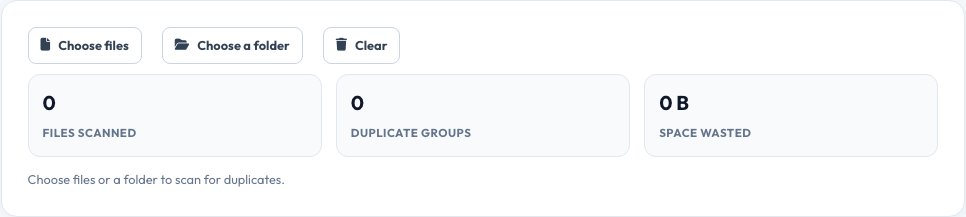
Select a folder or drag in a batch of files, and duplicate groups appear with each file's name, size and path, so you can decide which copy to keep. All hashing happens locally using the Web Crypto API — files are read into memory to compute the hash and are never uploaded anywhere.
Key features
True content matching
SHA-256 hashing finds identical files regardless of name.
Folder support
Select an entire folder, including subfolders.
Grouped results
Duplicate sets shown together with size and path.
Private
Files are hashed locally and never leave your device.
How to use it
- Click to choose files, or select a whole folder.
- Wait while each file is hashed.
- Review the duplicate groups found.
- Delete or move duplicates manually using your file manager.
Worked example
Example
vacation.jpg and vacation (1).jpg have the same SHA-256 hash → flagged as an exact duplicate, saving 4.2MB if one copy is removed.
Who uses this tool
Anyone cleaning up storage
Find copies wasting space on a drive or cloud folder.
Photographers
Spot duplicate exports or backups of the same photo.
IT and file admins
Audit a shared drive for redundant files.
Tips for the best results
- Start with your largest folders (Downloads, Photos) where duplicates accumulate fastest.
- Sort duplicate groups by size to reclaim the most space first.
- Always keep at least one copy — this tool finds duplicates, it does not delete anything for you.
- Re-run it after a big folder merge or backup restore.
Common mistakes to avoid
- Assuming same file name means duplicate — names can differ while content is identical, or match while content differs.
- Hashing an entire huge drive at once, which uses significant memory and time in the browser.
- Deleting files without checking which copy is in active use.
Why use AZRS QuickFix?
It is 100% free, needs no signup and has no watermark or usage limits. The tool runs in your browser, so what you type stays on your device, and it works on phones, tablets and desktops. New tools are added every week — bookmark this page or browse the full QuickFix toolbox.
Frequently asked questions
Does it delete duplicates automatically?
No. It only finds and lists them; you choose what to remove using your operating system's file manager.
How are duplicates detected?
By comparing a SHA-256 hash of each file's full content — identical hashes mean identical files.
Can two different files have the same hash?
In practice, no — a SHA-256 collision is astronomically unlikely, so a match reliably means identical content.
Are my files uploaded?
No, they are read and hashed locally in your browser.
Can it scan a whole folder including subfolders?
Yes, use the folder picker, which includes nested subfolders.
Is there a file count or size limit?
It depends on your device's memory; a few thousand typical files hash without issue.