QR Code & Barcode Scanner
Scan QR codes and barcodes with your camera or from an image — safely · free, no signup
See QR Code & Barcode Scanner in action
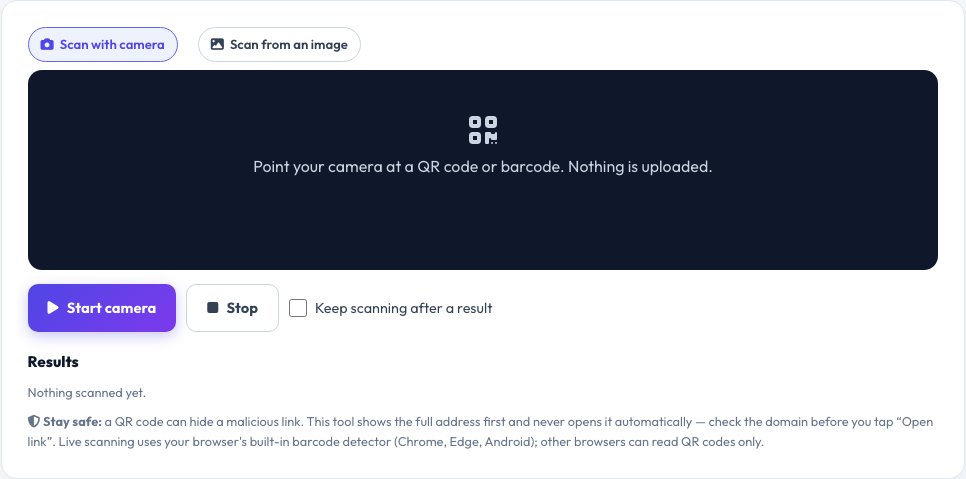
QR Code and Barcode Scanner — Camera or Image, Private and Safe
Scan a QR code or barcode without installing an app. Start the camera and hold the code inside the frame, or drop in a photo or screenshot — you can even paste an image from your clipboard. The tool decodes QR codes, EAN and UPC product barcodes, Code 128, Data Matrix and more using your browser's built-in barcode detector, with a QR-only fallback for browsers that lack it.
Every result is labelled by type — web link, Wi-Fi network, contact card, email, phone number, SMS, location, calendar event or product number — and shown in full so you can inspect it before doing anything. Links are never opened automatically, and the Open link button shows the destination domain. Scanning happens entirely on your device; no images or results are uploaded.
Key features
Camera or image
Live scanning, file upload, drag-and-drop or paste.
Many code types
QR, EAN/UPC, Code 128 and more.
Safe by design
Shows the full link and domain; never auto-opens.
Result types and history
Labelled results with one-click copy.
How to use it
- Choose Scan with camera or Scan from an image.
- Point the camera at the code, or drop an image.
- Read the result and its type.
- Copy it, or open a link only if you trust the domain.
Worked example
Example
QR → “Web link https://example.com/menu” with an Open link (example.com) button; EAN-13 barcode → “Product barcode number 5901234123457”.
Who uses this tool
Everyday users
Read codes on posters, menus, packages and screenshots.
Shoppers and sellers
Look up product barcodes.
Careful users
Inspect a QR link before visiting it.
Tips for the best results
- Hold the code steady in good light, filling about half the frame.
- For screenshots, use the image tab rather than the camera.
- Check the domain of any link — QR phishing (“quishing”) is common.
- Wi-Fi and contact QR codes can be copied and used in your device settings.
Common mistakes to avoid
- Opening a link from an unknown QR code without checking the domain.
- Scanning a code that is too small, blurry or glary.
- Expecting barcode support in browsers without a barcode detector (they read QR only).
Why use AZRS QuickFix?
It is 100% free, needs no signup and has no watermark or usage limits. The tool runs in your browser, so what you type stays on your device, and it works on phones, tablets and desktops. New tools are added every week — bookmark this page or browse the full QuickFix toolbox.
Frequently asked questions
Is it safe to scan any QR code?
Scanning is safe; opening the link is where the risk is. This tool shows the address first and never opens it for you.
Why does it read only QR codes in my browser?
Firefox and Safari lack the built-in barcode detector, so a QR-only fallback is used. Chrome, Edge and Android read many barcode types.
Are my images or camera video uploaded?
No. Everything is processed in your browser.
Can I scan a code from a screenshot?
Yes — use Scan from an image, or paste it with Ctrl/Cmd+V.
What barcode types are supported?
QR, EAN-13/8, UPC-A/E, Code 128/39/93, ITF, Codabar, Data Matrix, PDF417 and Aztec where your browser supports them.
Why does it not scan?
Improve the light, hold steadily, fill more of the frame, or try uploading a sharp image.