Online DXF Viewer with Measure Tool, Layers & Shape Properties
View a DXF file in your browser: zoom, pan, toggle layers, measure with snapping and see shape properties · free, no signup
See Online DXF Viewer with Measure Tool, Layers & Shape Properties in action
Free Online DXF Viewer & Measure Tool
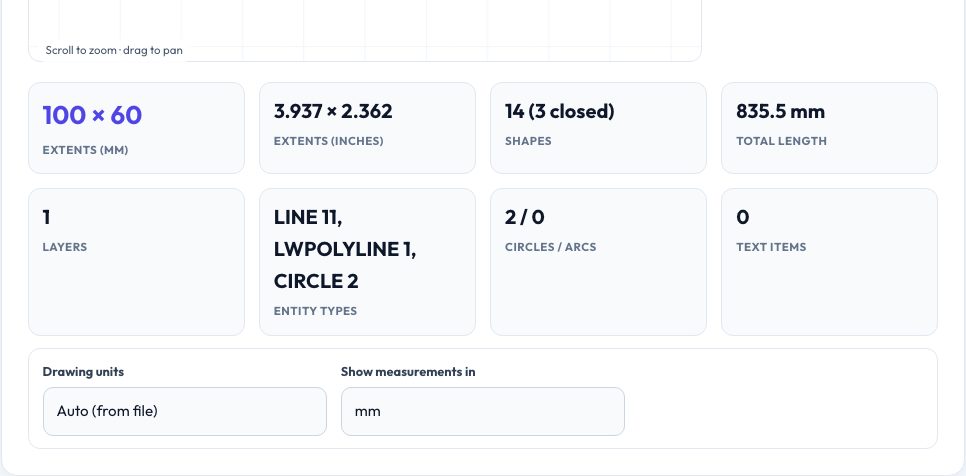
Opening a DXF just to check a dimension or see what is in it should not need a CAD program. Drop a DXF onto this viewer and it draws the geometry — lines, polylines with bulges, circles, arcs, ellipses, splines, blocks and text — in a smooth pan-and-zoom canvas with a layer list that lets you show or hide each layer and see how many entities it holds. The status bar shows the cursor's coordinates, and the extents, shape counts, total path length, entity types and units are summarised below.
Switch on the Measure tool to click two points with snapping to endpoints, midpoints, circle centres and quadrants and read the distance, ΔX, ΔY and angle in millimetres or inches; click any line, circle or arc to see its properties — length, radius, diameter, sweep, perimeter, area and centroid. If a drawing looks 25.4 times too big or small, change the drawing units and everything updates. Nothing is uploaded.
Key features
Smooth viewer
Pan, zoom to the cursor, grid and fit-to-window.
Layers
Toggle layers with colours and entity counts.
Snap measuring
Distance, ΔX, ΔY and angle between snapped points.
Shape properties
Length, radius, area and centroid for the clicked shape.
How to use it
- Drop in a DXF file.
- Toggle layers and zoom to the area you need.
- Turn on Measure and click two points.
- Click shapes to read their properties.
Worked example
Example
A 100 × 60 mm rectangle with a Ø16 mm circle shows extents 100 × 60 mm; measuring from one corner to the opposite corner gives 116.62 mm at 31.0°, and clicking the circle shows diameter 16 mm and area 201.06 mm².
Who uses this tool
Makers and machinists
Check dimensions of a supplied cutting file.
Students
Inspect CAD drawings without software.
Buyers and reviewers
Verify a vendor's DXF before production.
Tips for the best results
- Use the unit selector if sizes look wrong.
- Hide layers such as dimensions to see only the cut lines.
- Zoom in before measuring for accurate snapping.
- Click a circle to read its exact diameter.
Common mistakes to avoid
- Assuming the DXF units are millimetres when the file has none.
- Measuring without snapping on to the real end point.
- Expecting 3D DXF entities — only 2D is displayed.
Why use AZRS QuickFix?
It is 100% free, needs no signup and has no watermark or usage limits. The tool runs in your browser, so what you type stays on your device, and it works on phones, tablets and desktops. New tools are added every week — bookmark this page or browse the full QuickFix toolbox.
Frequently asked questions
Which entities are supported?
Lines, polylines, circles, arcs, ellipses, splines, text and block inserts.
Does it edit files?
No — it is a viewer and measuring tool.
Is my file uploaded?
No.
Does it work on a phone?
Yes, with pinch or scroll zoom.