JSON Formatter, Validator & Beautifier
Format, validate and minify JSON with clear error locations · free, no signup
Paste JSON on the left and click Format.
See JSON Formatter, Validator & Beautifier in action
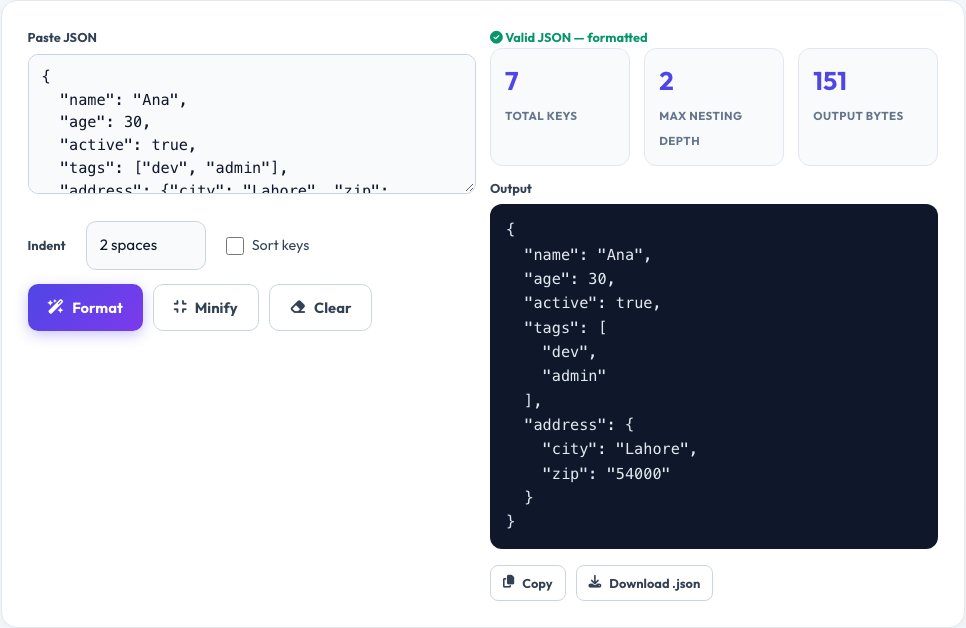
Free JSON Formatter, Validator & Beautifier
Malformed JSON — a missing comma, an extra bracket, a trailing comma — breaks APIs and config files, and the raw error from most languages just says "unexpected token" without telling you where. This tool parses your JSON in the browser, and if it fails, shows you the exact line and character the parser stopped at, plus a snippet of the surrounding text, so you can fix it in seconds instead of scanning by eye.
When the JSON is valid, it reformats it with clean, consistent indentation (2 or 4 spaces, or tabs), sorts keys alphabetically if you want, and shows basic stats — key count, nesting depth and byte size. A one-click minify mode strips all whitespace for pasting into config files or URLs where size matters.
Key features
Precise error location
Line and character number for the first syntax error, not a vague message.
Beautify or minify
Switch between readable indentation and a single compact line.
Sort keys optionally
Alphabetise object keys for easier diffing between versions.
Fully private
Parsing happens in your browser; nothing is sent anywhere.
How to use it
- Paste or type your JSON into the input box.
- Click Format to beautify it, or Minify to compact it.
- If it is invalid, read the line/character shown and fix that spot.
- Copy the result or download it as a .json file.
Worked example
Example
Input:  {"name":"Ana","age":30,"tags":["dev","admin"]}
Formatted:
{
  "name": "Ana",
  "age": 30,
  "tags": ["dev", "admin"]
}Who uses this tool
Developers
Debug malformed API responses and config files quickly.
QA and API testers
Validate JSON payloads before sending them in a request.
Students learning JSON
See correctly indented structure to understand nesting.
Tips for the best results
- Use minify only for machine-to-machine payloads — keep a beautified copy for editing.
- Sort keys before comparing two JSON files in a diff tool, so ordering differences don't hide real changes.
- Trailing commas are invalid in strict JSON, even though some languages allow them — this is the most common error caught here.
- Very large files (multiple MB) may be slow to format in the browser; consider a command-line tool for those.
Common mistakes to avoid
- Assuming JSON allows comments — it does not, and stray // or /* */ will fail to parse.
- Using single quotes around keys or strings; JSON requires double quotes.
- Leaving a trailing comma after the last item in an array or object.
Why use AZRS QuickFix?
It is 100% free, needs no signup and has no watermark or usage limits. The tool runs in your browser, so what you type stays on your device, and it works on phones, tablets and desktops. New tools are added every week — bookmark this page or browse the full QuickFix toolbox.
Frequently asked questions
Is my JSON data uploaded anywhere?
No, it is parsed and formatted entirely in your browser using JavaScript's built-in JSON parser; nothing is sent to a server.
Why does it say "Unexpected token" at a line that looks fine?
JSON errors are often reported at the position where the parser gives up, which can be just after the real problem — check the character just before the reported position too, such as a missing comma on the previous line.
Can I convert JSON to a more compact form for a URL?
Yes, use Minify, which removes all unnecessary whitespace.
Does it support JSON5 or JSONC with comments?
No, this validates strict JSON per the JSON specification; comments and trailing commas will be flagged as errors.
Can I sort the keys alphabetically?
Yes, toggle Sort keys before formatting to alphabetise every object's keys recursively.
Is there a file size limit?
No hard limit, but very large files may format slowly since everything runs in your browser rather than on a server.