PDF Page Organizer (Reorder, Rotate & Delete)
Drag to reorder, rotate or delete PDF pages, then download the rebuilt file · free, no signup
See PDF Page Organizer (Reorder, Rotate & Delete) in action
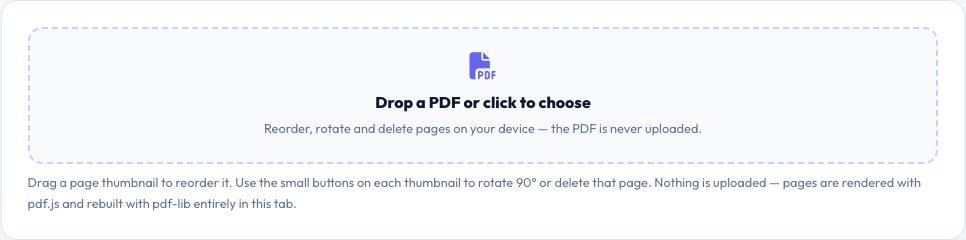
Free PDF Page Organizer — Reorder, Rotate and Delete Pages
Most PDFs end up in the wrong order at some point — a scanned form with pages out of sequence, a report that needs its appendix moved, or a contract with a blank page to remove. This tool opens your PDF, renders every page as a thumbnail you can see at a glance, and lets you fix it with drag-and-drop instead of fighting with a heavyweight desktop editor.
Drag any thumbnail to a new position and the page order updates instantly. Click the rotate button on a page to turn it 90° at a time, or use “Rotate all” to fix a whole batch of sideways scans in one click. Click delete to remove a page — deleted pages are kept in a small undo list until you export, so a mis-click never costs you anything. When the layout looks right, Download reorganised PDF rebuilds the file with pdf-lib, preserving the original page content, fonts and images exactly, just in the new order, rotation and page set you chose.
Key features
Drag-to-reorder thumbnails
See every page and rearrange them visually, no page numbers to remember.
Rotate per page or all at once
Fix sideways-scanned pages in 90° steps.
Delete with undo
Remove pages safely — restore them any time before you export.
Lossless rebuild
pdf-lib copies the original page content exactly; nothing is re-compressed or re-rendered.
How to use it
- Drop your PDF onto the page.
- Wait a moment while every page renders as a thumbnail.
- Drag pages into the order you want, rotate or delete as needed.
- Click Download reorganised PDF to save the result.
Worked example
Example
A 12-page scanned contract has the signature page first and two duplicate blank pages → drag the signature page to the end, delete the two blanks → download a clean 10-page PDF in the right order.
Who uses this tool
Office and admin staff
Fix scanned documents and reports before sending them on.
Students and researchers
Reorder chapters or move an appendix without retyping anything.
Freelancers and small businesses
Assemble a clean PDF from a messy scan before sharing with a client.
Tips for the best results
- Rotate pages before reordering if your scanner mixed portrait and landscape pages.
- Use “Restore deleted” if you remove a page by mistake — it stays available until you export.
- For very large PDFs (100+ pages), give the thumbnails a few extra seconds to render.
- Keep your original file until you have confirmed the exported PDF looks right.
Common mistakes to avoid
- Exporting before checking every page — scroll through the thumbnails first.
- Expecting text or image editing — this tool only reorders, rotates and removes whole pages.
- Closing the tab mid-render on a very large file before thumbnails finish loading.
Why use AZRS QuickFix?
It is 100% free, needs no signup and has no watermark or usage limits. The tool runs in your browser, so what you type stays on your device, and it works on phones, tablets and desktops. New tools are added every week — bookmark this page or browse the full QuickFix toolbox.
Frequently asked questions
Is my PDF uploaded to a server?
No. The file is read, rendered and rebuilt entirely in your browser using pdf.js and pdf-lib; it never leaves your device.
Does reordering or rotating reduce quality?
No. Pages are copied at the vector/original level by pdf-lib, so text stays sharp and file size stays close to the original.
Can I undo a deleted page?
Yes, until you export. Click “Restore deleted” to bring every removed page back.
What is the largest PDF I can organise?
It depends on your device's memory; most PDFs up to a few hundred pages work smoothly. Very large scanned files may render more slowly.
Can I rotate just one page?
Yes — each thumbnail has its own rotate button, and you can also rotate every page at once.
Does it work on mobile?
Yes, though dragging thumbnails is easiest with a mouse or on a larger screen.