Internet Speed Test
Measure download, upload, ping and jitter in about 30 seconds · free, no signup
| When | Down | Up | Ping | Jitter | Server |
|---|---|---|---|---|---|
| No tests yet. | |||||
See Internet Speed Test in action
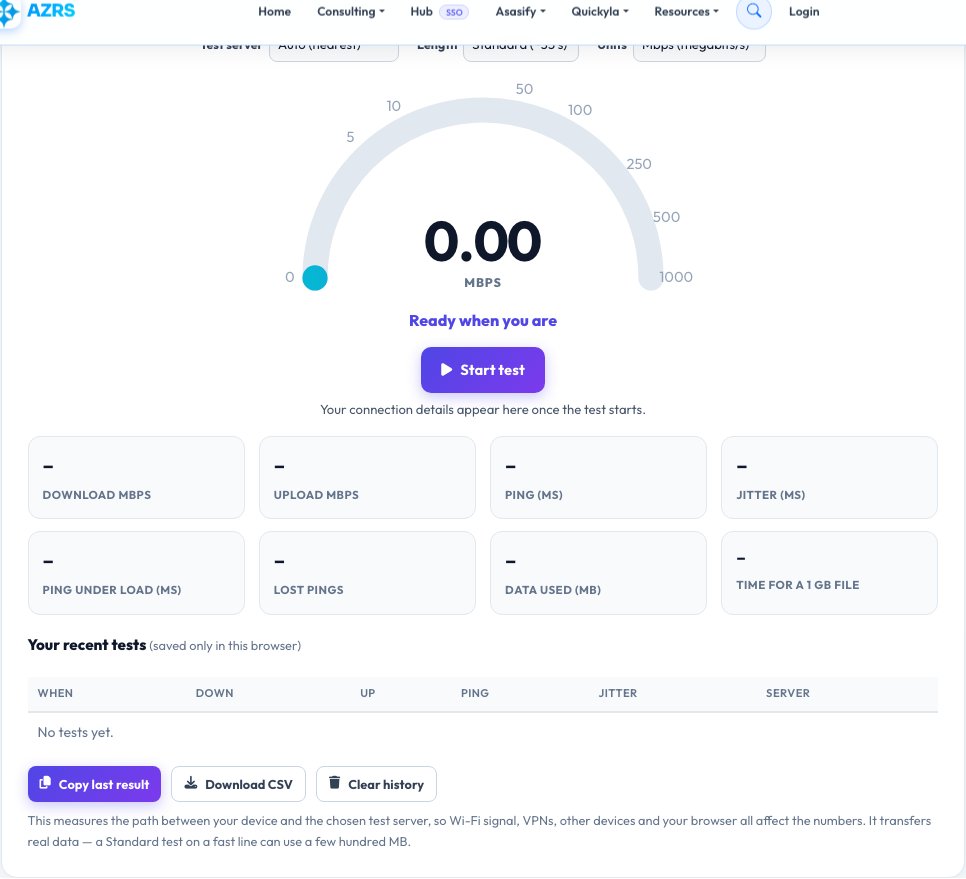
Free Internet Speed Test — Check Your Real Download, Upload and Ping
This internet speed test measures what your connection actually delivers right now. It runs in your browser, opens several parallel connections to a nearby test server, and reports your download speed, upload speed, ping (latency), jitter (how steady the ping is) and ping under load, which shows whether your line stays responsive when it is busy.
Speeds are shown in megabits per second (Mbps), the unit internet providers advertise, and can be switched to megabytes per second (MB/s), the unit your browser shows for downloads. Results are compared with real-world needs such as HD and 4K streaming, video calls, online gaming and live streaming, so you can see at a glance whether your plan is good enough. Every test is saved in your own browser so you can compare morning and evening, Wi-Fi and cable, or before and after calling your provider.
Key features
Download and upload
Multi-stream tests that keep the line busy for a fair, stable reading.
Ping, jitter and loaded ping
Latency, its stability, and how much it grows under load (bufferbloat).
What it means for you
Checks for streaming, calls, gaming, cloud gaming and multi-device homes.
History and export
Last 20 tests stored privately in your browser, copy or download as CSV.
How to use it
- Close streaming, downloads and cloud backups on your devices for a clean reading.
- Press “Start test” and wait about 30 seconds without using the connection.
- Read download, upload, ping and jitter, and the checklist of what your speed supports.
- Repeat at different times of day or on Wi-Fi and cable, and compare with the history table.
Worked example
Example
Download 94.3 Mbps · Upload 18.7 Mbps · Ping 14 ms · Jitter 2.1 ms
→ Good: 4K streaming, video calls and gaming all work. A 1 GB file downloads in about 1 min 25 s.
Who uses this tool
Home users
Check that you get the speed you pay for and find dead spots on Wi-Fi.
Remote workers
Confirm video calls and uploads will hold up before an important meeting.
Gamers and streamers
Check ping, jitter and upload before going live or into a ranked match.
Tips for the best results
- Test with a cable (Ethernet) as well as Wi-Fi: the difference shows whether your router or your provider is the bottleneck.
- Run 3 tests at different times and use the middle result, not the best one.
- Pause other devices and turn off any VPN for a clean number.
- If ping under load is far higher than idle ping, enable smart queue (SQM/QoS) on your router.
Common mistakes to avoid
- Testing while a 4K stream or big download runs in the background.
- Comparing Mbps with the MB/s your browser shows: 8 Mbps equals 1 MB/s.
- Judging your plan by a single test on a busy evening or over weak Wi-Fi.
Why use AZRS QuickFix?
It is 100% free, needs no signup and has no watermark or usage limits. The tool runs in your browser, so what you type stays on your device, and it works on phones, tablets and desktops. New tools are added every week — bookmark this page or browse the full QuickFix toolbox.
Frequently asked questions
How does this speed test work?
Your browser downloads and uploads test data over several parallel connections for a few seconds and measures how many bits arrive or leave per second, after a short ramp-up period. Ping is measured with small requests and reported as the lowest round-trip time.
Why is my result lower than my plan?
Advertised speeds are maximums to your provider. Wi-Fi, distance from the router, older devices, a VPN, other people online and the test server itself all reduce the measured speed.
What is a good internet speed?
Around 25 Mbps handles 4K streaming for one person, 100 Mbps suits most households, and 300 Mbps or more is comfortable for many devices, large uploads and cloud gaming.
What are ping and jitter?
Ping is the time a small message takes to reach the server and come back; jitter is how much that time varies. Low and steady numbers matter most for calls and games.
What is ping under load?
It is your ping while the line is downloading at full speed. A big jump means bufferbloat: your router queues too much data and everything feels laggy while someone downloads.
Does the test use a lot of data?
It uses real data — roughly your speed multiplied by the test length. A Standard test on a 100 Mbps line uses about 150–250 MB in total, so choose Quick on mobile data.
Is it free and private?
Yes. The test runs in your browser, needs no signup, and your history is kept only in your own browser storage.