SVG / DXF Path Offset & Kerf Compensation Tool
Grow, shrink or kerf-compensate every closed path in an SVG or DXF so laser and CNC parts finish at the drawn size · free, no signup
See SVG / DXF Path Offset & Kerf Compensation Tool in action
Free SVG / DXF Offset and Kerf Compensation Tool
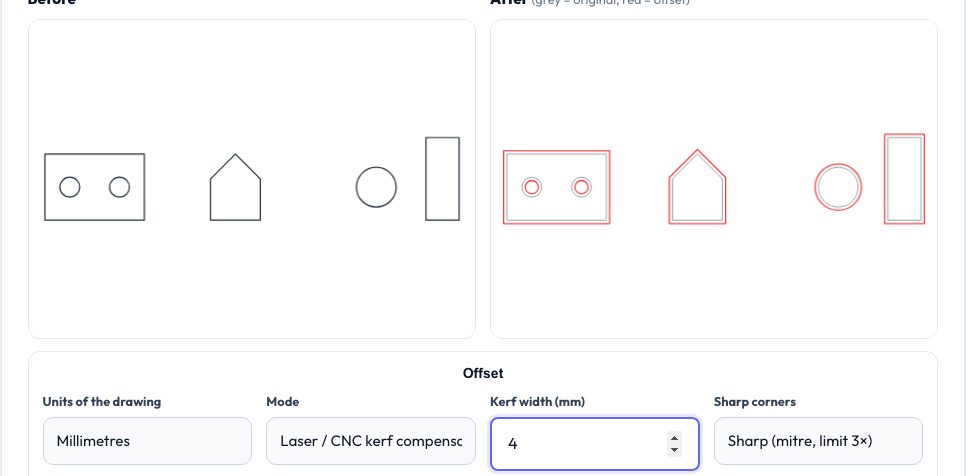
Every laser beam and router bit removes a strip of material. Cut a 20 mm square on its outline and it ends up smaller than 20 mm while its holes end up larger — a problem for press fits, finger joints and anything that must fit together. Kerf compensation moves each outer outline outward and each hole inward by half the kerf so the finished part matches the drawing.
This tool applies that compensation, or a plain grow or shrink by any distance, to every closed path in an SVG or DXF, with a before/after preview and area change, and exports SVG or DXF. Open paths and text pass through unchanged. It all runs in your browser.
Key features
Kerf mode
Half-kerf offset: parts out, holes in.
Grow / shrink
Offset every outline by a distance.
Before/after overlay
Original in grey, result in red.
Collapsed-feature warnings
Tells you when features vanish.
How to use it
- Drop in an SVG or DXF.
- Choose kerf, grow or shrink.
- Enter the kerf or distance.
- Check the preview and download.
Worked example
Example
A 20 mm square with a 8 mm hole and a 0.2 mm kerf becomes a 20.2 mm square with a 7.8 mm hole; after cutting, both come out at the drawn size.
Who uses this tool
Laser cutters
Tight press fits and finger joints.
CNC routers
Tool radius compensation.
3D printing
Add tolerance to outlines before extruding.
Sign makers
Grow outlines for borders.
Tips for the best results
- Measure your kerf with a test cut.
- Typical CO2 laser kerf is 0.1–0.25 mm.
- Check collapsed warnings with small holes.
- Offset before nesting parts.
Common mistakes to avoid
- Offsetting open paths and expecting them to move.
- Using full kerf instead of half.
- Large offsets on very concave shapes.
Why use AZRS QuickFix?
It is 100% free, needs no signup and has no watermark or usage limits. The tool runs in your browser, so what you type stays on your device, and it works on phones, tablets and desktops. New tools are added every week — bookmark this page or browse the full QuickFix toolbox.
Frequently asked questions
What is kerf?
The width of material removed by the cut.
Why half?
Each side of the line loses half the kerf.
Does it offset text?
No — convert text to paths first.
Is my file uploaded?
No.