SVG to DXF Converter with Unit & Scale Control
Exact-size SVG to DXF: pick source units, scale to a width, layers by colour · free, no signup
See SVG to DXF Converter with Unit & Scale Control in action
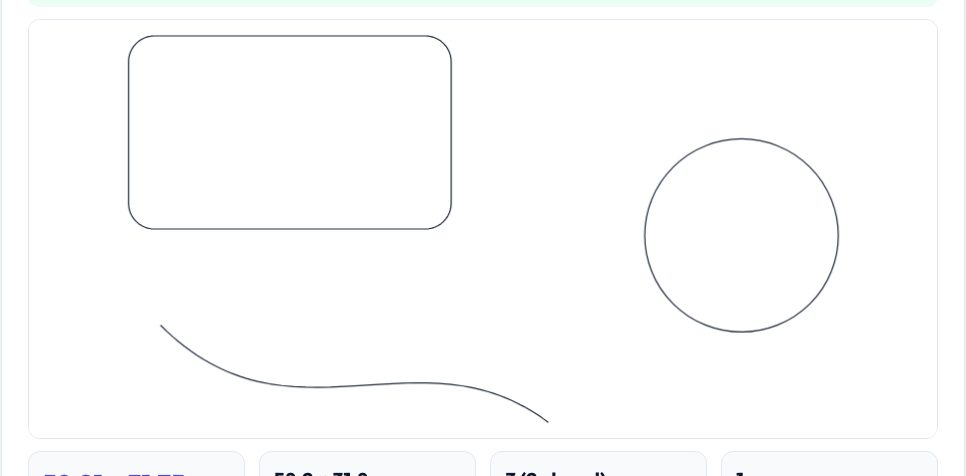
Free SVG to DXF Converter — Exact Size, Units & Layers
The hardest part of SVG to DXF is getting the size right. SVG files are measured in 'user units' that mean different things in different programs: Inkscape and browsers treat 1 unit as 1/96 inch, Illustrator as 1/72 inch, and files with a viewBox and mm width are different again. This tool lets you declare what a unit means — or leave it on Auto to use the file's own width/height and viewBox — then either enter a scale percentage or type the exact width or height you need in millimetres, centimetres or inches. The result card and preview show the final size before you download.
Curves are flattened to the accuracy you select (0.005 – 0.05 mm) and circles can stay true DXF CIRCLE entities so CNC and CAD software see real holes. Layers can follow the SVG's groups, or the stroke colour — handy for laser jobs where red lines cut and blue lines engrave — or collapse onto a single CUT layer. Output is AutoCAD 2000 (LWPOLYLINE) or R12 (POLYLINE), moved so the lower-left corner sits at (0,0).
Key features
Explicit unit handling
Auto, 96 dpi px, 72 dpi pt, mm, cm or inches — no more 'it imported 3.78× too small'.
Exact-size scaling
Scale % or exact width/height with proportions locked.
Layers by colour
Split cut and engrave layers by stroke colour or by SVG group.
True circles & fine curves
Circles stay circles; Béziers and arcs are flattened to your accuracy.
How to use it
- Drop in your SVG.
- Set what one SVG unit means (or keep Auto).
- Type the exact width/height or scale you need and read the size card.
- Choose layers and DXF version, then download.
Worked example
Example
An Illustrator logo exported as SVG (72 dpi, 288 px wide = 101.6 mm) is converted with the 'Points at 72 dpi' setting to a DXF exactly 101.6 mm wide; entering 150 in the width box rescales it to 150 mm with proportions preserved.
Who uses this tool
Laser-cutter users
Get logos and shapes into LightBurn/LaserGRBL at true size.
CNC hobbyists
Convert vector art to DXF for CAM software.
Designers
Hand off artwork to engineers as exact-size DXF.
Tips for the best results
- Convert text to outlines (Object to Path) in your editor first.
- Use stroke-colour layers: red for cut, blue for engrave, black for scoring.
- Use 'Join touching segments' if your CAM complains about open contours.
- Always verify one dimension in the target program.
Common mistakes to avoid
- Leaving units on Auto when the SVG has no width/height and no viewBox.
- Forgetting that SVG's y axis points down — it is flipped for you.
- Importing tiny stroke widths expecting them to become geometry — strokes are not converted to outlines.
Why use AZRS QuickFix?
It is 100% free, needs no signup and has no watermark or usage limits. The tool runs in your browser, so what you type stays on your device, and it works on phones, tablets and desktops. New tools are added every week — bookmark this page or browse the full QuickFix toolbox.
Frequently asked questions
Why is my DXF the wrong size?
SVG units differ by program. Pick the right 'SVG user unit' or use exact width/height.
Does it convert text?
No. Convert text to paths first because it depends on installed fonts.
Are arcs kept?
SVG arcs become fine polylines; circles stay circles.
Is it private?
Yes, nothing is uploaded.