STL to STEP Converter (Mesh to Solid)
Turn an STL mesh into a STEP B-rep solid with planar faces · free, no signup
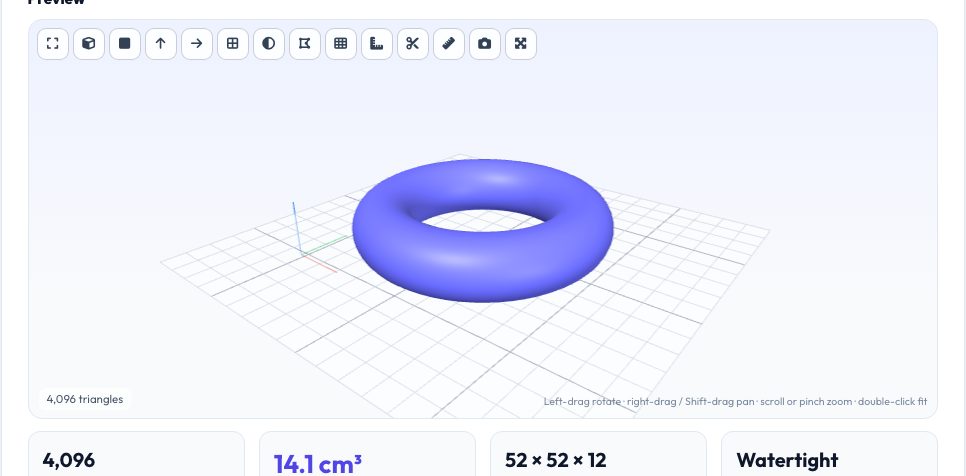
See STL to STEP Converter (Mesh to Solid) in action
Free STL to STEP Converter — Mesh to B-rep Solid
Turning an STL into STEP is one of the most requested and least-served CAD conversions. An STL is just triangles; a STEP solid is made of faces, edges and vertices. This tool builds a genuine STEP AP214 boundary-representation solid from your mesh: it welds duplicate vertices, optionally repairs holes and flipped normals, merges neighbouring coplanar triangles into single planar faces, and writes a closed shell of planar faces that CAD programs import as a real solid body.
Be realistic about what this can do: a mesh describes curved surfaces as many flat facets, so a cylinder becomes a faceted prism in CAD — the tool cannot recover the original cylinder. But for blocky mechanical parts (brackets, enclosures, plates) the planar-face merge returns a clean, light solid, and for any mesh you get a watertight solid you can measure, section, boolean and use as a reference in Onshape, Fusion 360, SolidWorks or FreeCAD. You can verify the output with the built-in OpenCascade check.
Key features
True B-rep solid
ADVANCED_FACE + PLANE + EDGE_CURVE geometry with a closed shell — not just points.
Coplanar face merging
A cube becomes 6 faces, not 12 triangles; large flat areas stay single faces.
Auto repair
Welds vertices, fixes flipped normals and fills small holes before building the solid.
One-click verification
Re-reads the STEP with the OpenCascade kernel and compares face count and volume.
How to use it
- Drop in an STL (or OBJ, 3MF, PLY).
- Leave 'Merge coplanar triangles' and 'Repair first' on.
- Press Convert and wait — dense meshes take longer.
- Download the .step, optionally press Verify, then import it into your CAD program.
Worked example
Example
A 20 mm cube STL (12 triangles) becomes a STEP with 6 planar faces. A faceted 720-triangle sphere becomes 384 planar faces (quads merge where triangles are coplanar). Re-reading both with OpenCascade returns volumes within 0.01% of the original mesh.
Who uses this tool
Makers with only an STL of a part
Bring it into CAD as a solid to add holes, mounts or tolerances.
Engineering students
Use scanned or downloaded meshes as references in assemblies.
Reverse-engineering hobbyists
Create a measurable solid from a mesh as a starting point.
Tips for the best results
- Keep meshes under about 150,000 triangles — every triangle can become a face and CAD programs slow down on huge face counts.
- Simplify (decimate) organic meshes first; CAD handles thousands of faces far better than hundreds of thousands.
- If your CAD software reports an open shell, run the STL Repair tool first and convert again.
- For curved parts you plan to edit, recreate the curves in CAD and use the imported solid only as a reference.
Common mistakes to avoid
- Expecting cylinders, fillets or splines back — a mesh cannot be turned into parametric features automatically.
- Converting a non-watertight mesh and expecting a perfect solid.
- Importing a 500k-face STEP into a free-tier CAD workspace and having it freeze.
Why use AZRS QuickFix?
It is 100% free, needs no signup and has no watermark or usage limits. The tool runs in your browser, so what you type stays on your device, and it works on phones, tablets and desktops. New tools are added every week — bookmark this page or browse the full QuickFix toolbox.
Frequently asked questions
Does it make an editable parametric model?
No. It makes a faceted B-rep solid (planar faces). Parametric history and true curves cannot be recovered from a mesh.
Which CAD programs open the result?
Anything that reads STEP AP214: Onshape, Fusion 360, SolidWorks, Inventor, FreeCAD and more — the geometry is standard ADVANCED_FACE/PLANE B-rep.
Why did my STL become so many faces?
Curved surfaces are made of many small facets. Reduce the triangle count of the STL before converting.
Is it safe to upload confidential parts?
Nothing is uploaded; the entire conversion runs in your browser.
How do I know the STEP is valid?
Use the Verify button, which loads the STEP into the OpenCascade CAD kernel and compares the solid with your mesh.