Add Text, Logo or Base Plate to an STL
Emboss or engrave text and SVG logos on any face of an STL, or add a flat base plate · free, no signup
See Add Text, Logo or Base Plate to an STL in action
Free Add Text, Logo or Base to an STL
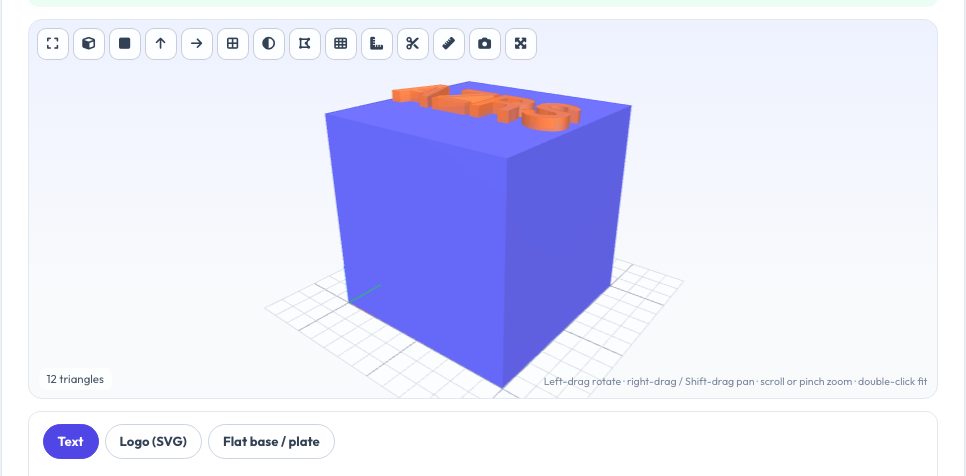
Personalising a downloaded STL — a name on a bracket, a logo on a case, a serial number under a part — normally needs a CAD program. Here you drop in the model, type your text (one or two lines, three fonts) or load an SVG logo, choose which face it belongs on (top, bottom, front, back, left or right), and set height or depth, rotation and position. An orange preview shows exactly where it will land before you add it.
Raised text is sunk 0.3 mm into the surface so it fuses with the model in any slicer; engraved text is cut with a true boolean subtraction in a background thread. A third tab adds a flat base plate (rectangle, rounded rectangle or circle) under the model with a margin you choose — useful for improving bed adhesion or making a stand. You can add several things in sequence, undo them all, and export STL, 3MF, OBJ or PLY.
Key features
Text and SVG logos
Two lines, three fonts, or a vector logo with holes preserved.
Any face
Top, bottom and the four sides, with rotation and offsets.
Emboss or engrave
Raised lettering fused into the surface, or true boolean engraving.
Base plate
Rectangle, rounded or circular plate sized around the model.
How to use it
- Drop in your model.
- Type text or load an SVG logo and pick the face.
- Set height/depth, rotation and offsets; check the orange preview.
- Press Add, repeat if you like, then download.
Worked example
Example
Engraving 'AZRS' 8 mm tall and 1 mm deep on the top of a 40 mm cube removes a few tens of cubic millimetres; embossing the same text adds 1 mm of lettering that stands on the surface.
Who uses this tool
Makers
Name tags, serial numbers and branding on printed parts.
Small businesses
Put a logo on every product without CAD.
Teachers
Label models and jigs.
Tips for the best results
- Keep letters 1 mm or more wide and engraving 0.6 mm deep or more for FDM.
- Engrave on large flat faces; curved faces get only a flat cut.
- Use a flat base plate to prevent warping of tall thin parts.
- Convert text in your SVG to outlines first.
Common mistakes to avoid
- Engraving on a model that is not watertight.
- Using a logo with open strokes instead of filled shapes.
- Placing text across an edge so only part of it lands on the face.
Why use AZRS QuickFix?
It is 100% free, needs no signup and has no watermark or usage limits. The tool runs in your browser, so what you type stays on your device, and it works on phones, tablets and desktops. New tools are added every week — bookmark this page or browse the full QuickFix toolbox.
Frequently asked questions
Which fonts are available?
Helvetica Bold/Regular and Optima Bold (basic Latin characters).
Does engraving work on curved faces?
It cuts a flat-bottomed pocket from the face plane; it does not wrap.
What is the size limit for engraving?
About 40,000 triangles; simplify dense models first.
Is it private?
Yes, everything runs in your browser.